 Awan
Awan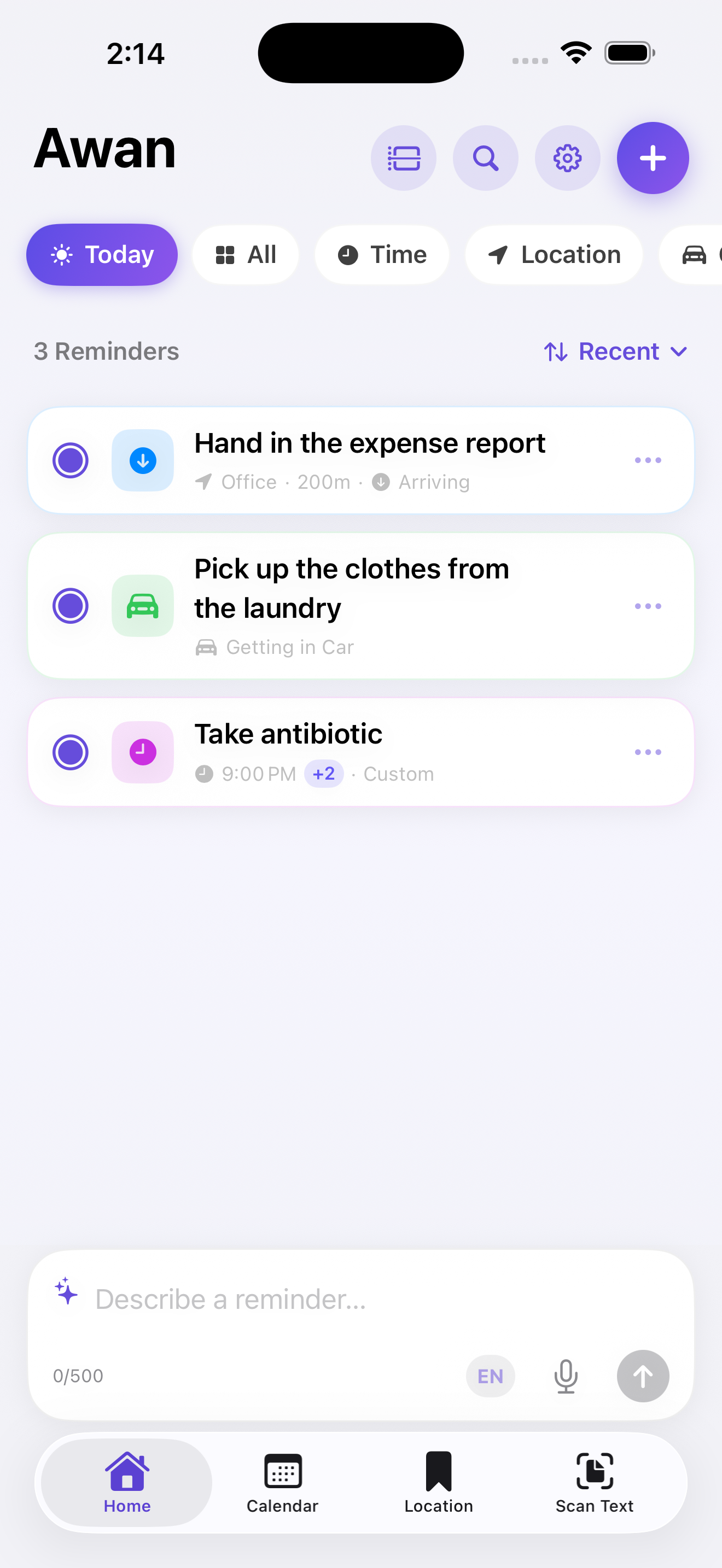
Awan at a glance.
Choose the moment that matters — a place, a time, or your car — and Awan monitors it for you in Arabic or English.
How Awan works
You tell Awan once what should happen and when. From then on iOS watches that condition — a place, a time, or your car — and delivers the reminder at the right moment, even when the app is closed and your phone is locked.
- Set it and forget it. Reminders keep working in the background — you don't need to open the app.
- On your device. Your reminders and saved places stay on your iPhone (or your private iCloud, if you turn on sync). Only text you send to Create with AI leaves the device.
- You stay in control. Every reminder — including ones made by AI — opens in the editor so you can review it before it's saved.

Two quick steps, and you're ready.
Awan needs location and notification access so reminders can work in the background and reach you at the right moment.
- Location — Always and Precise. Tap Allow While Using, then Change to Always Allow, and keep Precise Location on. iOS only runs geofences reliably in the background with this access.
- Notifications — Allow. So your reminders can alert you.
iOS asks about location in two steps. Choose Allow While Using first; when the second prompt appears, choose Change to Always Allow. "Always" doesn't mean Awan tracks you — it only lets iOS wake the app when you cross a boundary you set.


Describe it. Awan handles the setup.
Type what you want in plain Arabic or English, then review the reminder Awan prepares for you.
- Tap the ✨ Create with AI bar on the Home screen.
- Describe it — for example, “email the report when I arrive at work” or «ذكرني أن أتصل بأمي الساعة ٨ مساء». You can describe several reminders in one message.
- Awan opens the editor pre-filled. Review the details, then tap Save.

Create your first reminder in four steps.
-
1
Pick a trigger
Tap + and choose Location, Time, or Car.

-
2
-
3
Choose the alert
Keep it Regular, or choose Urgent for reminders that need immediate attention. Open Advanced Settings to control activity, repeats, completion on open, schedule, and an optional time window.

-
4
Save
Tap Save. Monitoring starts right away.
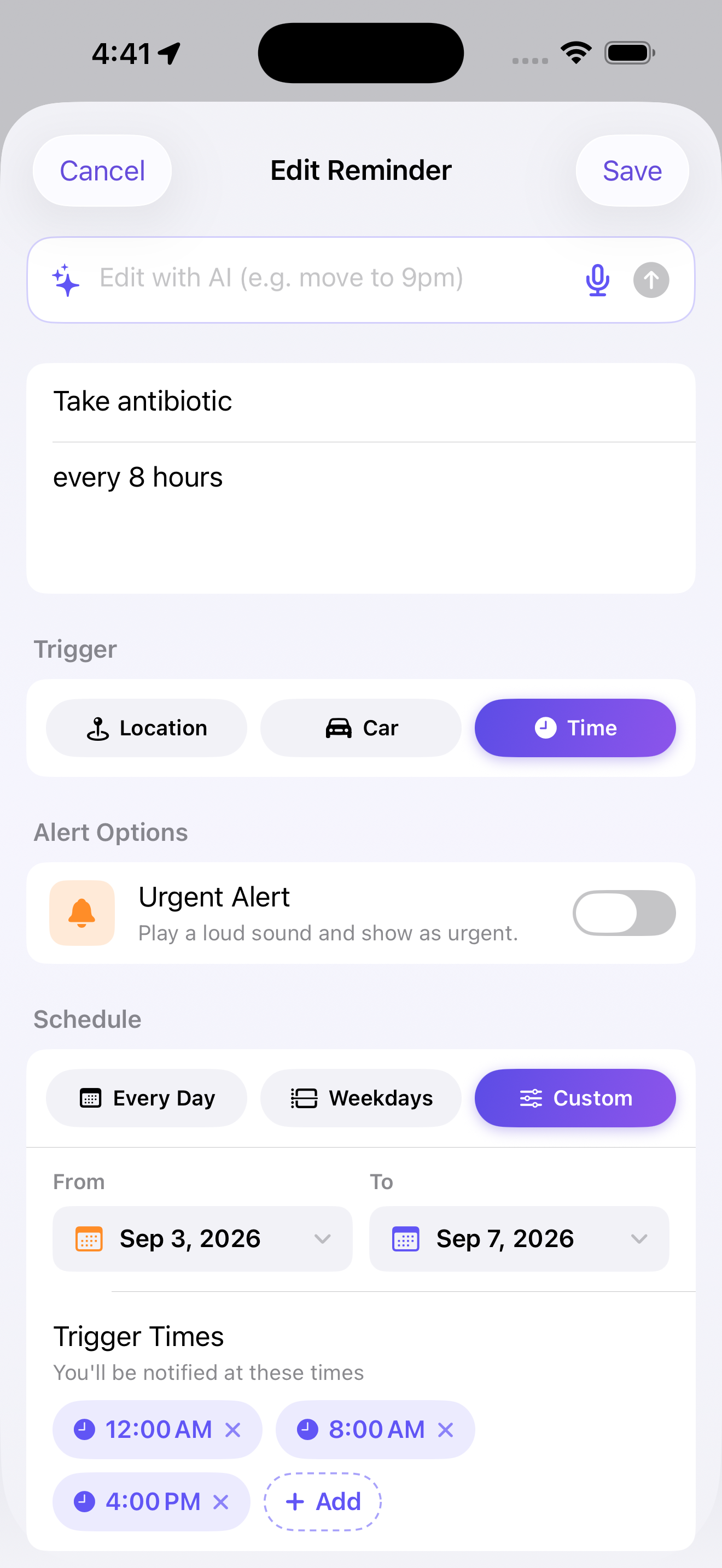
Three ways a reminder fires.
| Trigger | How it works |
|---|---|
| 📍 Location | Fires when you arrive at or leave a place. Drop a pin, search, or pick a saved place, then set the radius (100 m–2 km). |
| ⏰ Time | Fires at the times you add (up to 15 a day). Schedule Every Day, Weekdays, or a Custom date range, with an optional time window. |
| 🚗 Car | Fires when your iPhone connects to or disconnects from your car (Bluetooth or CarPlay). Optionally pin it to a nearby saved place. |
📍 Location reminders
Pick a spot on the map, search an address, or choose a saved place, then decide whether the reminder fires when you arrive or when you leave. The radius is how close you need to be before it triggers.
| Radius | Good for |
|---|---|
| 100–200 m | A specific shop, office, or your home — on foot |
| 300–500 m | A mall, campus, or neighborhood |
| 1–2 km | Arriving in an area by car (roads need a wider radius) |

⏰ Time reminders
Add one or several times a day (up to 15), then choose how the reminder repeats:
- Every Day — fires every day at the times you set.
- Weekdays — pick specific days (e.g. Sun, Tue, Thu).
- Custom — a start and end date for a limited run (e.g. a 10-day course of medicine).
Great for medication ("3 times a day"), prayers, standups, or any routine.

🚗 Car reminders
Awan can remind you when your iPhone connects to your car or disconnects from it over Bluetooth or CarPlay. Create a Car reminder, choose the connection or disconnection event, and save it as active. You can also restrict it to a nearby saved place.
To connect a specific car's events to Awan and save your parking spot automatically, follow Car & Parking Setup. Choose the Bluetooth device in the Shortcuts automation; Awan's Settings → Car & Parking controls whether parking logs replace the last entry or keep a history.
Your regular spots, one tap away.
Save places you use often — Home, Work, Gym — and reuse them in any reminder without searching again.


- Open the Location tab → Add Location, name it, then drop a pin or search.
- Give it an icon (Home, Work, Parking…). Parking places can store a floor and bay.
- Swipe a place to edit or delete it.
Find and manage everything fast.
- Filters — All, Today, Active, or Inactive, with live counts. Today sorts by nearest first.
- Search — match any reminder by title, description, or place.
- Pause / resume — tap the circle on a row instead of deleting.
- Details — tap a reminder for its map, status, and trigger history.
- List / timeline — switch between compact reminder cards and a time-based view of your day.
- Calendar — browse reminders by day in Gregorian or Hijri.


Search and reminder details
Search checks both reminders and saved places. Open a reminder to review its trigger, map, radius, status, schedule, and firing history.

How reminders reach you.
| Option | What it does |
|---|---|
| Regular / Urgent | Regular uses your chosen sound; Urgent plays an alarm that bypasses Silent and Do Not Disturb. |
| Repeat Until Acknowledged | Sends up to 5 follow-ups (every 1–10 min) until you open one. |
| Complete on Open | Marks the reminder done when you tap its notification. |
Regular vs. Urgent
Regular reminders behave like normal notifications and respect Silent mode and Do Not Disturb. Turn a reminder Urgent when it must not be missed — it plays its sound even in Silent mode and Do Not Disturb. Use Urgent sparingly so it stays meaningful.
Choosing sounds
In Settings → Sounds you can set a separate sound for regular and urgent reminders:
- Gentle Bells — the default urgent sound: attention-getting but calm, not a harsh alarm.
- Classic Alarm — a louder, traditional alarm tone.
- Soft Chime, Standard, or Silent — for a lighter touch.
Pull text out of the real world.
Extract Arabic and English text from documents and signs — right on device.
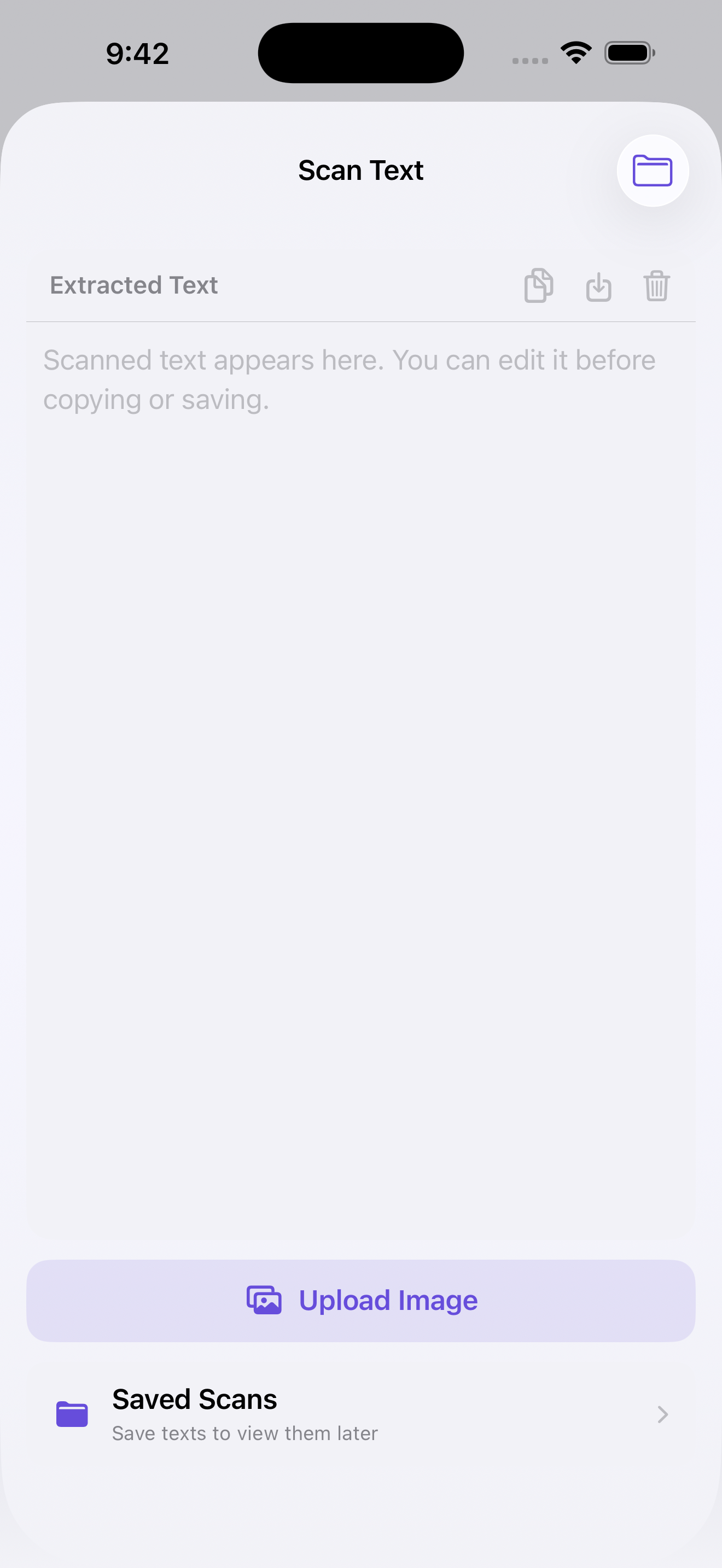
- Scan with the camera or pick a photo, then edit the result.
- Copy it, or Save it to Saved Notes to revisit later.
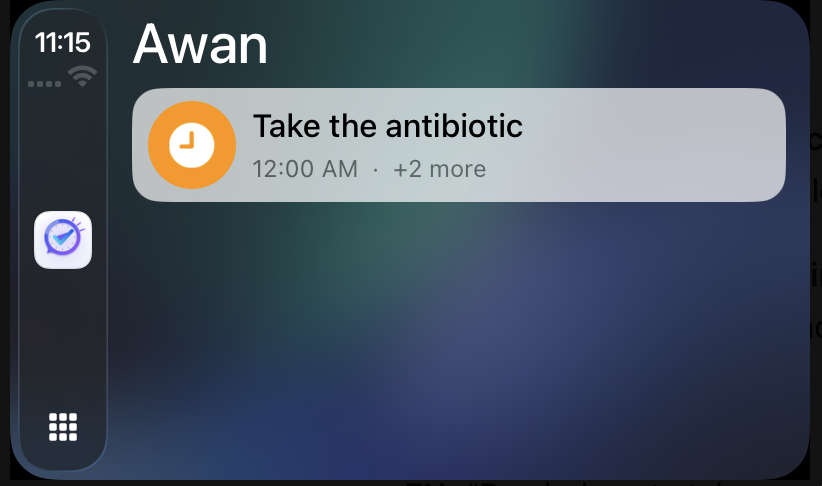
Your reminders on the road.
- Today's reminders appear on the car screen, most actionable first.
- Tap a row for turn-by-turn navigation to its location.
- Alerts play through the car speakers; urgent ones stand out in orange.
Link your car. Save where you parked.
Set up two automations in Apple's Shortcuts app: one to run Awan's car reminders when you connect, and another to record your parking location when you disconnect.
1. Prepare your iPhone and Awan
- Pair your iPhone with the car in iPhone Settings → Bluetooth and connect once. If you use CarPlay, complete its setup and confirm it connects.
- Open Awan. Under Settings → Permissions, enable notifications and set location access to Always with Precise Location on.
- For car alerts, create an active Car reminder for the event you want. The connect and disconnect actions run existing reminders; Log Parking saves a place separately.
2. Link the connection event to Awan
- Open Shortcuts → Automation, tap + or New Automation, and choose Bluetooth.
- Tap Choose beside Device and select your car. Choose Is Connected. For a CarPlay setup, use the CarPlay → Connects trigger instead.
- Select Run Immediately, then Next. Choose a new blank shortcut or Add Action, search for Awan, and add Fire Car Connect Reminders (shown as Fire Car Connect in the app shortcuts).
- Save the automation with Done or the checkmark. Connecting to the selected device now runs Awan's active car-connect reminders.
3. Log parking when you disconnect
- Create a second automation. For CarPlay, choose CarPlay → Disconnects. For Bluetooth, choose the same car and Is Disconnected if that option is available on your iPhone.
- Choose Run Immediately, then Next, and create a blank shortcut or tap Add Action.
- Search for Awan and add Log Car Parking Location (shown as Log Parking in the app shortcuts).
- To also receive your car-disconnect reminders, add Fire Car Disconnect Reminders to this same automation. Keep the parking action in it to save the location.
- Save the automation. When the selected connection ends, Awan records your iPhone's location in Saved Locations as Auto-Logged Parking.
Keep the latest spot or a parking history
In Awan, open Settings → Car & Parking → Overwrite Auto-Logged Parking. Leave it on to update one parking entry each time, or turn it off to add a separate entry with the date and time on every run. This setting controls how the shortcut saves locations; the disconnection automation above starts the recording.

Test it once after setup
While parked, connect your phone, then disconnect it. Wait a few seconds and open Awan → Saved Locations → Auto-Logged Parking. Check that the saved position matches where you parked. Each disconnection can start a log, including an interrupted connection before you finish a trip.
- No parking entry? Run Log Parking manually once, allow any requested access, and check Awan's location permission. Then check that the automation uses the disconnection event, the correct car, and Run Immediately.
- No reminder? Check that the reminder is active, matches the connection event, and meets any saved-place or schedule conditions.
- Parking details locked? Viewing automatic parking details beyond the free allowance requires a subscription.
For the iPhone automation controls, see Apple's guides to CarPlay triggers and Bluetooth triggers.
Tune it to how you work.

- New reminder defaults — radius, type, schedule, and calendar (Gregorian / Hijri).
- Car & Parking — choose whether Log Parking updates the latest spot or adds a dated entry each time. Follow Car & Parking Setup to make it run automatically.
- Sounds — separate sounds for regular and urgent alerts.
- Language — switch English / Arabic instantly.
- Appearance — System, Light, or Dark.
- iCloud Sync — keep reminders in sync across your Apple devices (off by default).
- Subscription — required to create and manage reminders; 7-day free trial on first subscribe.
Get the most out of Awan.
Small habits that make reminders more reliable and less noisy.
Quick answers to common questions.
Why didn't my location reminder fire?
Why does Awan need “Always” location?
How does Awan affect battery life?
Where is my data stored?
Can I use Awan offline?
What if Create with AI gets a detail wrong?
How do I edit or remove a reminder?
Which languages does Create with AI understand?
Is Awan free?
Do I need CarPlay for car reminders?
Tell us what happened and we’ll help you get Awan working.